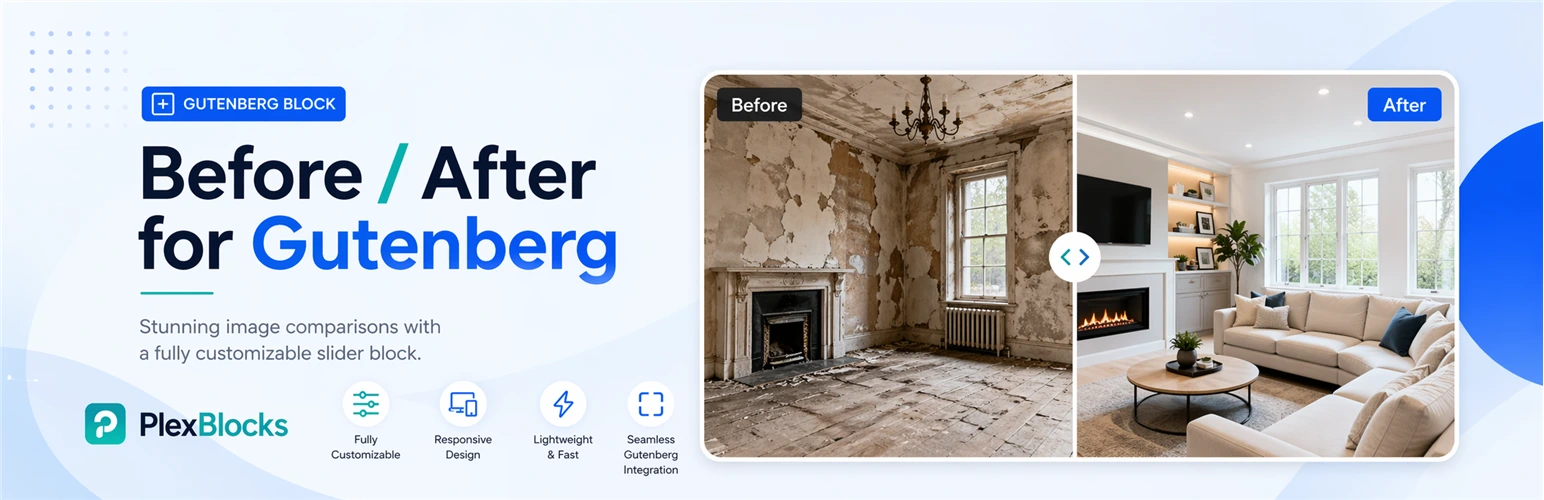
PlexBlocks – Before After Image Comparison for block editor
Add an interactive before-and-after image comparison block to WordPress with a draggable slider handle — right inside the Block Editor. Perfect for transformations, product comparisons, renovations, photo edits and case studies.
Add an interactive before-and-after image comparison block to your WordPress website with ease.
Before / After Plex Block helps users compare two images using a draggable slider handle directly inside the WordPress block editor. It’s perfect for showcasing transformations, product comparisons, renovation projects, photo edits, case studies, and more.
Whether you want to display design improvements, before/after transformations, or product comparisons — this plugin makes it simple and visually engaging.
Key Features
Easy before and after image selection
Interactive draggable comparison slider
Vertical comparison mode
Horizontal comparison mode
Custom before/after labels
Option to hide labels
Height control customization
Border radius settings
Custom color controls
Shadow styling options
Fully compatible with WordPress Block Editor (Gutenberg)
Why Use Before / After Plex Block?
This plugin helps businesses, creators, agencies, photographers, and developers present visual comparisons in a more interactive way.